CFG User Guide
Target user:
Administrators of small scale NGOs
Value Proposition:
ContactsForGood (CFG) helps NGO administrators efficiently manage donors, volunteers, and partners by organising contacts and tracking engagement. With its typing-focused interface and offline, editable data, CFG hopes to streamline contact management, allowing administrators to focus on outreach and mission-critical tasks.
Quick start
Download the latest
.jarfile from here.Copy the file to the folder you want to use as the home folder for CFG (e.g. create the folder "contactsforgood" in "Documents").
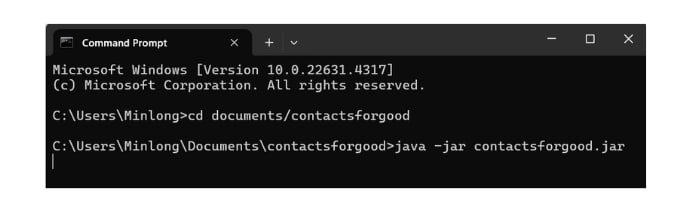
Open a command terminal. Run the
java -versioncommand to ensure you are using Java 17.Use
cdto navigate to the folder containing the.jarfile.
cdstands for "change directory".- e.g.
cd Documents/contactsforgood
Use the
java -jar contactsforgood.jarcommand to run the application.Your command terminal should look similar to this after steps 4 and 5 (adjusted for your folder's path).
A GUI similar to the below should appear in a few seconds after running the
java -jar contactsforgood.jarcommand. Note how the app contains some sample data.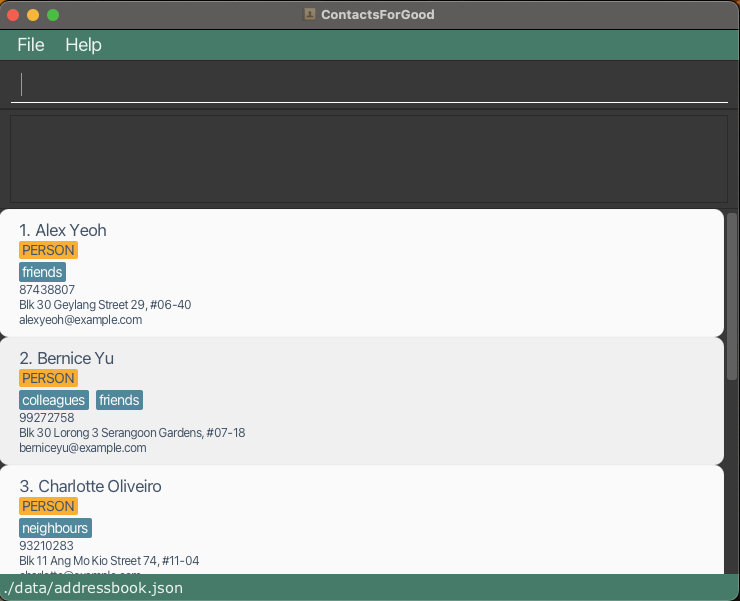
Type the command in the command box and press Enter to execute it. e.g. typing
helpand pressing Enter will open the help window.
Some example commands you can try:list: Lists all contacts.add r/volunteer h/30 n/John Doe p/98765432 e/johnd@example.com a/John street, block 123, #01-01: Adds a contact namedJohn Doewith avolunteerrole to CFG.delete 3: Deletes the 3rd contact shown in the current list.clear: Deletes all contacts.exit: Exits the app.
Refer to the Features below for details of each command.
Features
Notes about the command format:
- Words in
UPPER_CASEare the parameters to be supplied by the user. e.g. inadd n/NAME,NAMEis a parameter which can be used asadd n/John Doe.
Each parameter is preceded by a prefix, which indicates the type of data the parameter represents.
For example:n/is the prefix forNAME, as inadd n/John Doe.p/is the prefix forPHONE_NUMBER, as inadd p/12345678.
Any unrecognized parameter's prefix will be treated as part of the value for the preceding valid prefix. For example:
- Correct✅:
add n/John Doe p/12345678 - Incorrect❌:
add n/John Doe xyz/12345678(In this case,xyz/12345678will be treated as part of the name value, which will result in an error) - To prevent unexpected behavior, ensure only valid prefixes are used when entering commands.
- Correct✅:
Items in square brackets are optional. e.g.
n/NAME [t/TAG]can be used asn/John Doe t/friendor asn/John Doe.
Note: If an optional field is not required, avoid leaving the prefix empty, as this will result in an invalid command. e.g.edit 1 n/is not a valid command.
Items with
… after them can be used multiple times including zero times.
e.g.[t/TAG]…can be used as(i.e. 0 times),t/friend,t/friend t/familyetc.An
INDEXrefers to the person at the index number shown in the last displayed person list.
The index must meet the following conditions:Correct Format:
The index must be a positive integer (e.g. 1, 2, 3, …). Non-numeric or improperly formatted inputs (e.g.-1,abc,1.5) will be deemed as incorrect format.Valid Index:
The index must be within the range of the last displayed person list. Indices that are numeric but refer to non-existent entries in the list (e.g.999when the list has only 10 people) will be deemed as invalid indices.
INDICEStakes in multipleINDEXs- In this case, each
INDEXcan be a single number (e.g.2) or a closed range (e.g.5-9). - Each
INDEXis separated by spaces (e.g. of anINDICES,1 2 3 5-9). - Note: In a closed range, there must be no spaces between the numbers and the hyphen (e.g.
5-9is correct, but5 - 9or5 -9or5- 9are incorrect). INDICESexpects at least oneINDEXunless theINDICESitem is optional.
- In this case, each
- Parameters can be in any order.
e.g. if the command specifies
n/NAME p/PHONE_NUMBER,p/PHONE_NUMBER n/NAMEis also acceptable.
- Extraneous parameters for commands that do not take in parameters (such as
help,exitandclear) will be ignored. e.g. if the command specifieshelp 123, it will be interpreted ashelp.
- If you are using a PDF version of this document, be careful when copying and pasting commands that span multiple lines as space characters surrounding line-breaks may be omitted when copied over to the application.
Command summary
Person-Related Commands
| Action | Format | Example |
|---|---|---|
| Add | add [r/ROLE] n/NAME p/PHONE_NUMBER e/EMAIL a/ADDRESS [t/TAG]… [h/HOURS] [d/DONATED_AMOUNT] [ped/PARTNERSHIP_END_DATE] | add r/volunteer n/James Ho p/81234567 e/jamesho@example.com a/123, Clementi Rd, 123456 h/19 |
| Clear | clear | clear |
| Delete | delete INDICES | delete 1 2 3 5-7 |
| Edit | edit INDEX [n/NAME] [p/PHONE_NUMBER] [e/EMAIL] [a/ADDRESS] [t/TAG]… [h/HOURS] [d/DONATED_AMOUNT] [ped/PARTNERSHIP_END_DATE] | edit 2 n/James Lee e/jameslee@example.com |
| Search | search PREFIX/KEYWORD [MORE_PREFIX/KEYWORD]… | search n/john |
| List | list | list |
| Sort | sort [s/SORT_OPTION] | sort s/name |
Group-Related Commands
| Action | Format | Example |
|---|---|---|
| Create Group | createGroup g/GROUP_NAME m/INDICES | createGroup g/blood drive m/1 2 4-7 |
| Add New Members to Group | addToGroup g/GROUP_NAME m/INDICES | addToGroup g/beach cleanup m/1 2 3-6 |
| Remove Existing Members from Group | removeFromGroup g/GROUP_NAME m/INDICES | removeFromGroup g/blood drive m/1 2 3 5-7 |
| Edit Group Name | editGroupName g/OLD_GROUP_NAME g/NEW_GROUP_NAME | editGroupName g/blood drive g/blood donation |
| List Groups | listGroups | listGroups |
| Delete Group | deleteGroup g/GROUP_NAME | deleteGroup g/blood donation |
General Commands
| Action | Format | Example |
|---|---|---|
| Help | help | help |
| Get Emails | email | email |
| Exit Application | exit | exit |
Adding a contact: add
This command adds a contact to CFG. There are 4 types of contacts: Volunteer, Donor, Partner, Person (default).
Format: add [r/ROLE] n/NAME p/PHONE_NUMBER e/EMAIL a/ADDRESS [t/TAG]… [h/HOURS] [d/DONATED_AMOUNT] [ped/PARTNERSHIP_END_DATE]
ROLE(Optional): Specifies the type of contact. If not provided, the contact will be added as a generalPerson.NAME: The contact's full name (case-insensitive).PHONE_NUMBER: The contact's phone number (Any length is allowed, accommodating 3-digit emergency numbers to 15-digit international numbers).EMAIL: The contact's email address (Only english emails are currently supported).ADDRESS: The contact's physical address.TAG(Optional): Additional tags associated with the contact (A contact can have any number of tags, including none).- Role-specific fields(not required for
Person)- Volunteer:
h/HOURS- Represents contributed hours.
- Donor:
d/DONATED_AMOUNT- Represents total donation amount in thousands of USD.- The amount can include up to two decimal places for precision (e.g.
123.45represents 123,450 USD). - The amount is always displayed in thousands of dollars. For very large numbers, scientific notation will
be used automatically (e.g.
12345678will be displayed as1.2345678E7, equivalent to 12,345,678 thousand USD).
- The amount can include up to two decimal places for precision (e.g.
- Partner:
ped/PARTNERSHIP_END_DATE- Represents the partnership's end date.- The date must be in the YYYY-MM-DD format.
- The date must be a valid date:
- A valid date is one that has existed in the past or will exist in the future. Both past and future dates are accepted as long as they are actual calendar dates.
- Examples of valid dates:
2023-03-15(Past date).2025-10-20(Future date).
- Examples of invalid dates:
2021-02-29(February 29 does not exist in 2021 because it is not a leap year).2023-03-33(March does not have 33 days).
- Volunteer:
- Role-specific fields must match the specified role:
- For
Volunteer,h/HOURSis required. - For
Donor,d/DONATED_AMOUNTis required. - For
Partner,ped/PARTNERSHIP_END_DATEis required. - If the specified role does not match the provided role-specific fields, the
addcommand will be deemed invalid.
- For
- Contact Uniqueness: Contacts are distinguished by their names only.
- This means that duplicate names are not allowed.
- However, multiple contacts can share the same phone number or email address if their names are unique.
Notes on valid and invalid fields
- CFG differentiates names by checking both the characters and the number of spaces. John Doe with a single space is NOT the same person as John Doe. If there exists a John Doe currently in ContactsForGood, you may add another John Doe with 2 spaces between.
- Note: Email addresses without periods (Single Label Domains) are supported. e.g. johndoe@intranet is a valid email.
Examples:
add r/volunteer h/10 n/John Doe p/98765432 e/johnd@example.com a/John street, block 123, #01-01add r/donor d/100 n/Betsy Crowe t/friend e/betsycrowe@example.com a/Newgate Prison p/1234567 t/rich
Clearing all entries : clear
Clears all entries from CFG.
Format: clear
Deleting a person : delete
Deletes the specified person from CFG.
Format: delete INDICES
- Deletes the person(s) at the specified
INDICES.
Tip: Be careful when using the delete command.
- Even if you are currently viewing a list of groups, the delete command will still apply to the last displayed person list.
- Ensure you are viewing the correct list before deleting.
Examples:
listfollowed bydelete 2 4 6-8deletes the 2nd, 4th, 6th, 7th, and 8th persons in CFG.search n/Betsyfollowed bydelete 1 3-5deletes the 1st, 3rd, 4th, and 5th persons in the results of thesearchcommand.
Editing a person : edit
Edits an existing person in CFG.
Format: edit INDEX [r/ROLE] [n/NAME] [p/PHONE] [e/EMAIL] [a/ADDRESS] [t/TAG]… [h/HOURS] [d/DONATED_AMOUNT] [ped/PARTNERSHIP_END_DATE]
- Edits the person at the specified
INDEX. The index refers to the index number shown in the displayed person list. - At least one of the optional fields must be provided.
- Existing values will be updated to the input values.
- The result of an edit can be identical to the original person, but it cannot be identical to any other existing user in CFG.
- When editing tags, the existing tags of the person will be removed i.e. adding of tags is not cumulative.
- You can remove all the person’s tags by typing
t/without specifying any tags after it.
Role-specific fields must correspond to the resulting role after editing:
- For
Volunteer,h/HOURSis required. - For
Donor,d/DONATED_AMOUNTis required. - For
Partner,ped/PARTNERSHIP_END_DATEis required. - If the resulting role does not have the specified field, the
editcommand will be invalid.
Examples:
edit 1 p/91234567 e/johndoe@example.comEdits the phone number and email address of the 1st person to be91234567andjohndoe@example.comrespectively.edit 2 n/Betsy Crower t/Edits the name of the 2nd person to beBetsy Crowerand clears all existing tags.
Searching persons by field: search
Search persons whose fields match the keywords given.
Format: search PREFIX/KEYWORD [MORE_PREFIX/KEYWORD]…
- The search is case-insensitive. e.g.
hanswill matchHans. - Search is restricted to the fields indicated by the provided prefixes.
- The order of the prefixes provided does not affect search results. e.g.
search n/alex t/friendswill return the same result assearch t/friends n/alex. - Only full words will be matched e.g.
friendwill not matchfriends. - For name searches, the order of keywords does not matter (e.g. Hans Bo will match Bo Hans).
- For name searches, persons matching any of the keywords given will be returned (eg.,
search n/Alex Davidreturns bothAlexandDavid). - For searches with multiple prefixes, only persons matching all keywords corresponding to the prefixes will be returned.
Tip: Supported search prefixes include:
NAME: n/TAG: t/PHONE_NUMBER: p/GROUP: g/ROLE: r/
Examples:
- Person A:
name: Alex Yeohtag: friendsphone number: 87438807role: person - Person B:
name: Irfan Ibrahimtag: classmatesphone number: 92492021role: person - Person C:
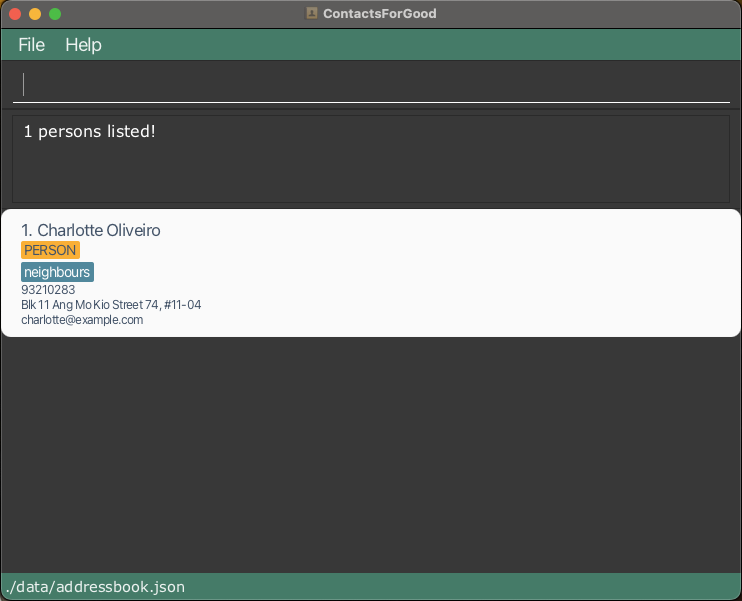
name: Charlotte Oliveirotag: neighboursphone number: 93210283role: person
search n/alexreturns persons with the namealexlikeAlex Yeoh.search r/personreturns all contacts with rolePersonlikeAlex Yeoh,Irfan IbrahimandCharlotte Oliveiro.search n/charlotte t/neighbours p/93210283returns all persons with name matchingcharlotte, tag matchingneighbours,phone number93210283 likeCharlotte Oliveiro.
Listing all persons : list
Shows a list of all persons in CFG.
Format: list
Sorting the displayed list: sort
Sorts the currently visible list of persons by a specified field.
Format: sort [s/SORT_OPTION]
- You can use
sortto arrange the contacts in the list you're currently viewing, whether it's the full list or a subset from commands likesearch. - If no sort option is provided,
sortwill restore the currently displayed list to its default order (i.e. the order in which contacts were added). - The sort order remains active until you apply a new sort option.
- For role-specific sort options (e.g.
hours):- Role contacts are sorted by the relevant criterion.
- Non-role contacts are placed at the back.
Supported sort options include:
name: Sorts contacts alphabetically by name.- For names with numbers, sorting follows alphabetical order first, then numerical order (e.g. "alfred" < "alfred2" < "ben").
hours: Sorts volunteers by hours contributed (in descending order).donations: Sorts donors by donation amount (in descending order).end_date: Sorts partners by partnership end date (from earliest to latest).
Examples:
sortsort s/namesort s/hours
Creating a group : createGroup
Creates a new group with people as members.
Format: createGroup g/GROUP_NAME m/INDICES
- Creates a new group with name
GROUP_NAME. - Adds the persons at the specified
INDICESto the group. Indices refer to the index numbers shown in the displayed person list. There must be at least one index provided, and indices should be separated by a space. - There cannot be two groups with the same name (case-insensitive). If a group
with the given
GROUP_NAMEcurrently exists, the command will fail.
Example:
createGroup g/blood drive 2024 m/3 4creates a new group namedblood drive 2024with the 3rd and 4th persons in the current list in view as members.
Adding new members to an existing group : addToGroup
Adds new members to a group that currently exists.
Format: addToGroup g/GROUP_NAME m/INDICES
- Adds new members to the group with the name
GROUP_NAME. - The indices are based on the indices displayed in the last list command.
- There must already exist a group with the name
GROUP_NAME. The indices must be valid indices. - If either of the above conditions are not met, the command will fail.
- CFG differentiates group names by checking both the characters and the number of spaces. Blood Drive with a single space is NOT the same group as Blood Drive.
Example:
addToGroup g/blood drive 2024 m/1 2 5 6adds the persons at index 1, 2, 5 and 6 of the current list in view as members to the existing group namedblood drive.
Removing members from an existing group : removeFromGroup
Remove members from a group that currently exists.
Format: removeFromGroup g/GROUP_NAME m/INDICES
- Removes specified members from the group with the name
GROUP_NAME. - The indices are based on the indices displayed in the last list command.
- There must already exist a group with the name
GROUP_NAME. The indices must be valid indices. - If either of the above conditions are not met, the command will fail.
Example:
removeFromGroup g/blood drive 2024 m/1 2 5 6removes the persons at index 1, 2, 5 and 6 of the current list in view from the existing group namedblood drive.
Tip: For ease of use, first list out the people in the group using the search command, then remove persons using this command.
Editing a group's name : editGroupName
Edits the name of a group that currently exists.
Format: editGroupName g/OLD_GROUP_NAME g/NEW_GROUP_NAME
- Changes the group with
OLD_GROUP_NAMEtoNEW_GROUP_NAME. - The old group name must exist, and the new group name must not already be in use.
- If either of the above conditions are not met, the command will fail.
Example:
editGroupName g/blood drive 2024 g/charity runrenames an existing group calledblood drive 2024intocharity run.
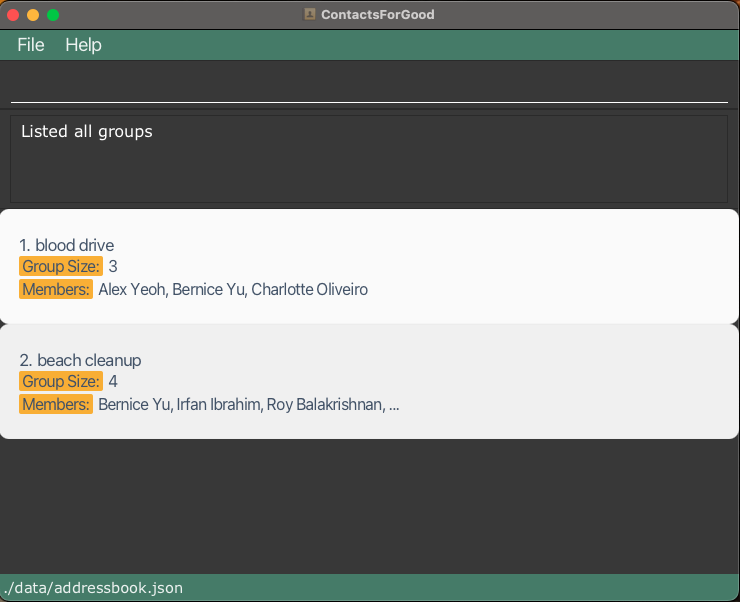
Listing groups: listGroups
Shows a list of all existing groups.
Format: listGroups
- The group size and up to three members are displayed for each group.
- If a group has more than three members, only the first three are shown, followed by "…" to indicate additional members.
Tip: To view all members of a group with more than 3 people, use search g/GROUP_NAME.
Deleting a group: deleteGroup
Deletes a group.
Format: deleteGroup g/GROUP_NAME
- Deletes group named
GROUP_NAME. - Group named
GROUP_NAMEmust exist.
Example:
deleteGroup g/blood drive 2024
Viewing help : help
Shows a message explaining how to access the help page.

Format: help
Getting emails: email
Copies to system clipboard the emails of all persons in the current list, separated by commas.
Format: email
Exiting the program : exit
Exits the program.
Format: exit
Saving the data
CFG data are saved in the hard disk automatically after any command that changes the data. There is no need to save manually.
Editing the data file
ContactsForGood data are saved automatically as a JSON file [JAR file location]/data/addressbook.json. Advanced users are welcome to update data directly by editing that data file.
Caution:
If your changes to the data file makes its format invalid, ContactsForGood will discard all data and start with an empty data file at the next run. Hence, it is recommended to take a backup of the file before editing it.
Furthermore, certain edits can cause the ContactsForGood to behave in unexpected ways (e.g. if a value entered is outside the acceptable range). Therefore, edit the data file only if you are confident that you can update it correctly.
FAQ
Q: Can I use CFG offline?
A: Yes! CFG is fully offline, storing data locally. You can manage contacts and use all commands without an internet connection, making it convenient and accessible anywhere.
Q: How do I transfer my data to another computer?
A: Install the app on the other computer and overwrite the empty data file it creates with the file containing the data from your previous CFG home folder.
Q: How does CFG handle duplicate contacts?
A: CFG checks for duplicates by comparing contact names. If a contact with the same name already exists, CFG will prevent the addition of a duplicate. Modify the name slightly or add unique identifiers if you need to create a similar entry.
Q: I ran a command, but it didn’t seem to work. What went wrong?
A: Check if you entered the command parameters in the correct format and order. For a quick glance at the correct syntax, refer to the Command Summary section.
Q: How can I improve search accuracy in CFG?
A: For more precise search results:
- Use multiple prefixes (e.g.
search n/John t/friend) to filter by multiple criteria. - Remember that searches are case-insensitive but require exact word matches.
- If your search results are too broad, refine them with additional criteria.
Q: How do I view all members in a large group?
A: Use search g/GROUP_NAME to display all members, regardless of the group size.
Q: Can a contact belong to multiple groups?
A: Yes, a contact can be a member of multiple groups. Simply use the addToGroup command with the contact’s index to include them in additional groups without affecting their membership in existing groups.
Q: Can I add or remove multiple members from a group at once?
A: Yes, CFG allows you to add or remove several members from a group in a single command. Use the createGroup or addToGroup command with a space-separated list of indices or a closed range to add multiple members. Similarly, use the removeFromGroup command with multiple indices or ranges to remove members efficiently.
Q: Can I rename a group without changing its members?
A: Yes, you can use the editGroupName command to change a group’s name while keeping its members intact. Just specify the old name and the new name, and the group will be updated without losing any contacts.
Known issues
- When using multiple screens, if you move the application to a secondary screen, and later switch to using only the primary screen, the GUI will open off-screen. The remedy is to delete the
preferences.jsonfile created by the application before running the application again. - If you minimize the Help Window and then run the
helpcommand (or use theHelpmenu, or the keyboard shortcutF1) again, the original Help Window will remain minimized, and no new Help Window will appear. The remedy is to manually restore the minimized Help Window.